How to connect to the wireless network - MEO Help
Find out how to connect to a wireless network, or wi-fi network, whether you have a Android, iOS or Windows device.
Internet connection
-
Windows 10 Operating System: How to connect to a wireless network
To connect to a wireless network, click on the wireless networks symbol to open the window showing you the available networks.
- Select the network you want to connect to. If you want, keep the "Connect automatically" box checked so that the device will connect to the network automatically in the future.
- Enter the password of the wireless network you want to connect to. Alternatively, you can press the WPS button on your router and the connection will be established automatically
- When you see that you are connected to the wireless network, you can start browsing.
-
Windows XP, Vista, 7, and 8 Operating Systems: How to Connect to a Wireless Network
-
Mac OSX Operating System: How to connect to a wireless network
-
Search for wireless networks
Click on the WiFi icon and search for available wireless networks:
- If WiFi is inactive, select
Turn WiFi on
- Select your network from the list of wireless networks displayed.
If you don't know the name of your MEO wireless network, go to
my MEO and go to
Internet > Services > Wireless Internet at home or in my MEO on TV at
Menu > customer > Fixed Internet.
If you have already changed your network name, the new name will appear in this list. If your network name doesn't appear, click on the update button.
-
Enter your password
Enter your password in all capital letters, select Remember this network and click on Access/Join. If you haven't changed your network password, you can find it on the underside of your MEO router.
-
Access the internet
Use your browser to access the internet (e.g. Internet Explorer, Safari, Google Chrome or Firefox).
-
Operating System Android: How to connect to a wireless network
- Select the apps button and then choose
Settings
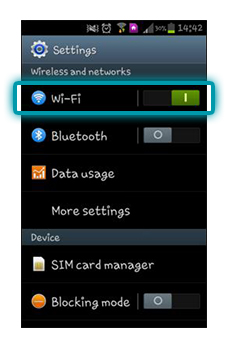
- In
Wireless and other networks, make sure WiFi is on and press WiFi
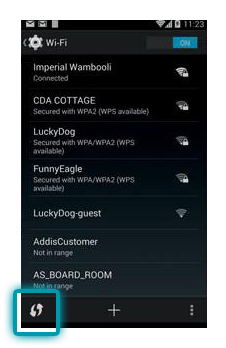
- Select the network you want to connect to
- Enter the password for the wireless network you want to connect to.
When you see that you are connected to the wireless network, you can start browsing.
Alternatively, after step 2, press the
WPS button on the router and select the WPS connection icon on the device. The wireless network connection will be established automatically.
-
Windows Phone Operating System: How to Connect to a Wireless Network
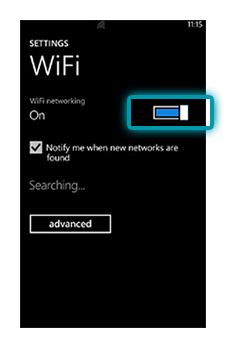
- Select Apps > WiFi and make sure WiFi is on
- Select the network you want to connect to
- Enter the WiFi network password
- When you see that you are connected to the wireless network, you can start browsing.
-
iOS operating system: How to connect to a wireless network
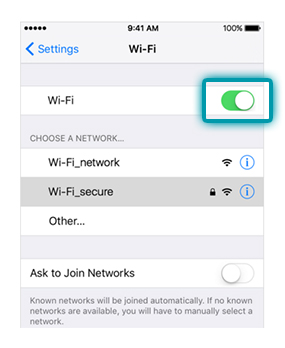
- Select
Settings > Wireless networks and make sure WiFi is on
- Select the network you want to connect to and enter the WiFI network password
- When you see that you are connected to the wireless network, you can start browsing.