Skip to content

MEO Home App - MEO Help

Discover our range of smart devices and the MEO Home app that lets you manage them remotely.

For quick support, use the MEO Digital Assistant

For quick support, use the MEO Digital Assistant

More help?

We have more ways to help you. If you can't find what you want in our Help articles, use our other digital channels, such as the App my MEO and the Digital Assistant, or contact us at support lines.

my MEO App

my MEO
my MEO App

Digital assistant

Digital assistant
Digital assistant

MEO Forum

MEO Forum
MEO Forum

MEO Stores

MEO Stores
MEO Stores
Video Tutorials
support lines

Use MEO Home App

  • What is the MEO Home app?

    The MEO Home app now includes the features of the MEO Smart WiFi app, which will be discontinued shortly. So, to continue managing your Wi-Fi and devices, install the new MEO Home app now.

    The MEO Home app lets you manage your home Wi-Fi network quickly and easily, giving you more control, better performance, and greater stability in your daily life. It combines the features of the former MEO Smart Wi-Fi app with a modern, intuitive design, making it easy to manage your connectivity.

    If you still use MEO Home equipment, the app will also allow you to manage that equipment, keeping everything centralized in a simple and complete experience.

    The MEO Home app is free and has no monthly fees. To use it, you just need a MEO ID, which will serve as your login to access the app. If you don't have a MEO ID yet , you can create one quickly.

    To use the connectivity area, you must have the MEO Smart WiFi service active (free of charge). If you do not have it, activate it as follows:
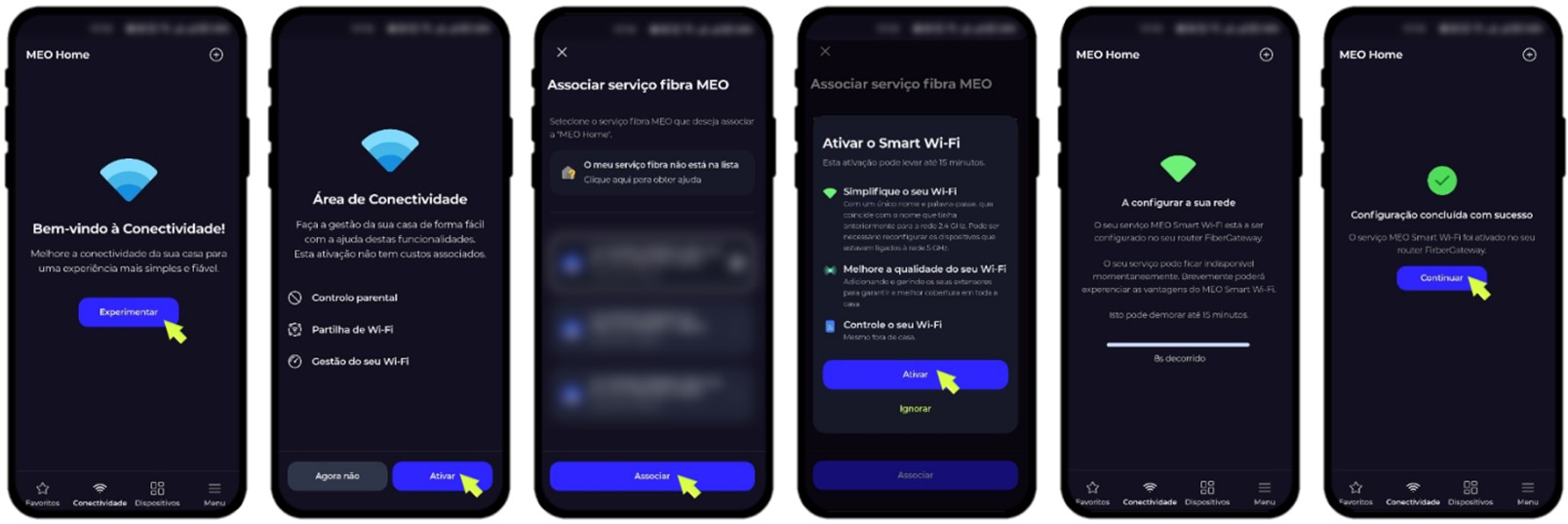
    meo home app screens showing the activation of the connectivity area

    Download the MEO Home app now for Android or iOS.

  • Use the MEO Home App

    The MEO Home app is organized into simple and intuitive areas, allowing you to quickly access the most important services and features of your connected home. You can access each of these areas in the bottom bar of the app.

    screen of the meo home app showing the four areas (Favorites, Connectivity, Devices, Menu)


    In the Favorites area: 
    • You can create a personalized space with the features that are most useful to you on a daily basis.

    In the area of Connectivity You can check the status of your network as well as the main settings. Learn in detail everything you can do in this area of Connectivity.
    • Change the Wi-Fi name and password
    • Activation of the guest network
    • Customization of main Wi-Fi and guest Wi-Fi technical settings
    • Customization of main Wi-Fi and guest Wi-Fi frequency bands
    • Check the status of the Wi-Fi network
    • Activate quick access buttons that are used to: share Wi-Fi, test speed, view the topology of connected devices, and evaluate Wi-Fi.

    In the Devices area:
    • View the lists of connected devices and network devices (FiberGateway and MEO Smart WiFi Extender, if applicable).
    • Customizedevices connected to the network by clicking on them: 
      • Define your name and image, 
      • Associate with a room in the house, 
      • Create Wi-Fi usage scenarios (if you have MEO Net Segura do this through the portal), 
      • View internet usage history, 
      • Secure the Wi-Fi band
      • View network information and other general options

    In the Menu area: 
    • Define usage scenarios for your connected devices
    • Create and delete rooms in your home in the app
    • Manage the homes associated with your MEO account
    • Customizing your profile
    • View notifications
    • Manage application settings 
    • Access app help and support
    • Log out of the app
  • How do I use the connectivity area of the MEO Home app?

    In the Connectivity area, you can monitor the status of your Wi-Fi network and install MEO Smart WiFi Extenders to improve signal coverage and stability at home.


    Key features of the connectivity component of the MEO Home app, which you can use from anywhere: 

    • Customize your home Wi-Fi (name, password, symbol, and device names, among others) 
    • View Wi-Fi status and quality
    • Create a temporary or permanent Wi-Fi network for your guests
    • Share Wi-Fi networks (main and guest)
    • Customize the technical settings for the main Wi-Fi and guest Wi-Fi
    • Customize the main Wi-Fi and guest Wi-Fi frequency bands
    • Create internet usage rules with parental controls (if you have subscribed to the MEO Net Segura service, which offers more comprehensive features, this option will not be available).
    • Test your Wi-Fi speed 
    • Manage the list of devices connected to your home
    • Improve Wi-Fi coverage by discovering the best locations to add MEO Smart WiFi Extenders 
    • View internet usage charts

    The following features are only available when advanced connectivity mode (free) is active. To activate it, follow the steps below. 

    • Customize network settings and Wi-Fi bands (2.4, 5, and 6 GHz) on your primary connection or guest network.
    • Customize the connectivity of your devices to available Wi-Fi bands: Automatically or fixed to any band (2.4, 5, or 6 GHz)
    • View the network topology


  • How to install MEO Smart WiFi Extenders with the MEO Home app?

    Installing and configuring MEO Smart WiFi Extenders with the new MEO Home app is quick and easy. 

    Before starting the installation: 
    • Ensure you have the MEO Home app ready to use
    • Ensure you are connected to your home's primary Wi-Fi network.

    To install, follow these steps: 
    1. Add an Extender in the MEO Home app:
      Screenshots of the meo home app showing how to add an extender to the app

    2. Connect the Extender with:
      Network Cable
      Screenshots from the meo home app showing how to connect an extender via network cable

      WiFi

      Screenshots from the meo home app showing how to connect an extender via Wi-Fi
      Screenshots from the meo home app showing how to connect an extender via Wi-Fi
    From now on, you will have better Wi-Fi coverage in your home. Enjoy your new internet experience.


    Note: MEO Smart WiFi 6 Extenders (model D2260G) work with all FiberGateway and Fiber X routers. MEO Smart WiFi 7 Extenders (model D27GBHP) work exclusively with FiberGateway WiFi 7 and Fiber X7 routers.