Skip to content

4K Android TV MEOBox - MEO Help

Find out how the MEOBox Android TV works and on which Android TV devices you can use the MEO app and watch MEO channels.

For quick support, use the MEO Digital Assistant

For quick support, use the MEO Digital Assistant

More help?

We have more ways to help you. If you can't find what you want in our Help articles, use our other digital channels, such as the App my MEO and the Digital Assistant, or contact us at support lines.

my MEO App

my MEO
my MEO App

Digital assistant

Digital assistant
Digital assistant

MEO Forum

MEO Forum
MEO Forum

MEO Stores

MEO Stores
MEO Stores
Video Tutorials
support lines

MEO App on Android

  • What is MEO boxless?

    MEO without box a new way to watch TV without needing a physical MEOBox. Through the MEO TV app, you get the full TV experience right on your Smart TV.
    Just use your Smart TV remote. All features of the MEO TV experience are controlled from a single remote.

    It retains the main features of MEO TV:
    • Quick channel zapping
    • TV Guide
    • Content organised by topic
    • Access to VideoClube and more.

    It's all much simpler and requires no extra equipment.
    Learn more about the MEO app (no set-top box required).
  • Explore the MEO App on Android 4K and its features

    The MEO app on theAndroid TV 4K offers a complete, seamless, and personalized television experience.


      My list

    • Quickly access your recordings, saved programs and content you've left half-finished 
    My List Android TV screen


      For you

    • See the most watched channels in your home

    • Check out the TV guide for all channels. Programs are organized by topic for faster channel surfing.

    • In the Multiview option, you can see the 4 main news channels on the screen at the same time, and Para customers SporTV and DAZN have multiview with 4 or more channels simultaneously.

    • Go directly to live games and the sports schedule featuring sporting events

    • Check out your recordings, your saved shows, and the shows and movies you left halfway through

    • Check out MEO's suggestions, based on what you see most

    Screen For You Android TV


      Explore

    • Check out the automatic recordings, organized by topic, where you can view all the content that has aired on TV in the last 7 days 

    • Watch the Opinion Clips of today's leading commentators

    • Quickly access the results and key moments from games that have already ended

    • Explore the Premium services available for subscription

    Explore Android TV screen


      VideoClube

    • Discover the thousands of films in the MEO catalog to rent 

    Android TV VideoClub screen


      customer

    • Manage your premium channels and subscriptions

    • Access usage tips and the app tour

    • Activate Private Mode for more discreet use

    customer Android TV screen


      Definitions

    • Customize your TV through the settings menu
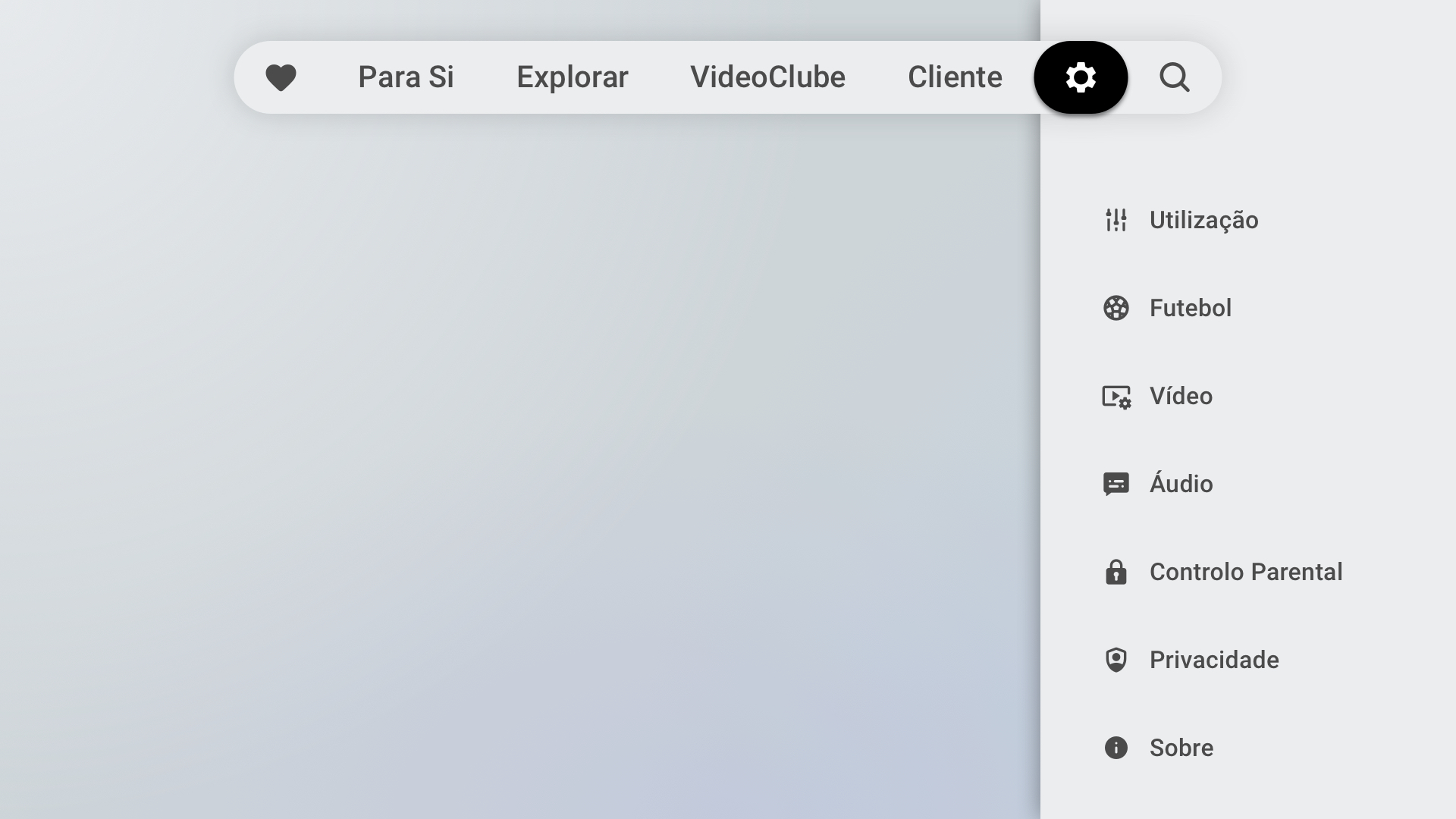
    Android TV Settings screen


      Research

    • Use the search function to easily find programs, films or channels, and discover the most popular content on MEO TV


    You can also access these features:

    Sports Timeline with Replay
    Watch the key moments of matches, such as goals, penalties or substitutions, even if you didn't see the start of the broadcast. With the interactive timeline, you can go back or forward to the moment that interests you most - all with a simple click by long-pressing OK on the broadcast.


    Radios
    Go to the Main Menu and choose the right station for your moment. From the energy of the morning to the relaxation of the end of the day, your TV now has sound for every mood. Browse dozens of national and international radio stations, choose your favorites, see what's playing and even go back and listen to what you missed.
    Radio screen on Android TV


    Profiles
    Personalized profiles for a unique experience. Create profiles and adapt the TV to your tastes, the rooms in your house or each person. Profiles influence My List, My Channels and Recommendations for You. 
    Profile screen on Android TV


    Edit Channels
    • Evolution of the Edit Channels feature to allow channels to be reordered individually, without using themes.
    • Reorder channel surfing with your favorite channels 
    • You can now create a list of favorite channels, hide channels, and sort by channel number or theme. 


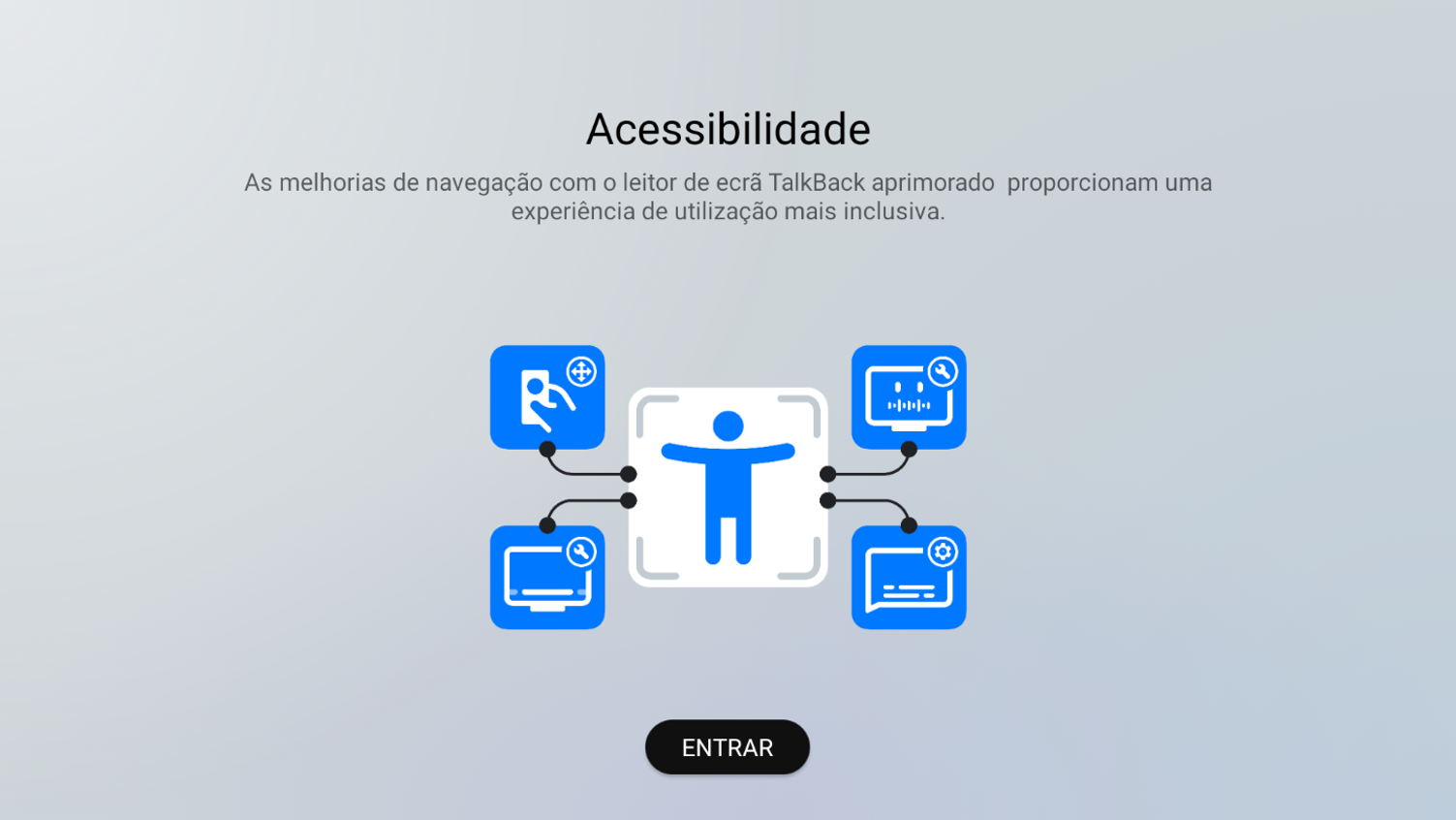
    Accessibility/Talkback
    • Accessibility and usability improvements for a more inclusive experience beyond the default Home.
    • Ability to navigate the main and secondary menus using the TalkBack screen reader.
    • Na mudança de canal imediata através dos botões <<>>, o TalkBack verbaliza o nome do canal e programa a ser transmitido. 
    • livre access livre the All Channels grid through TalkBack, via navigation in My Channels


    More with Android TV
    Access Google Play, use voice control and share content from your mobile phone on TV.


    Compatibility and Availability
    • The MEO app on MEOBox Android 4K includes all the features of the other MEOBoxes.
    • Integration with the my MEO app.
    • Available for MEO Fibre customers with TV and Internet service.
    • Compatible with any TV with HDMI input.
    • It allows you to connect up to 4 devices simultaneously (MEOBox Mediaroom, MEOBox Android 4K TV or Apple TV, and Smart TV (Android TV, Samsung, and LG)). The customer can manage and remove devices independently using the option to limit non-MEO devices.

    MEO onAndroid TV, a new way to watch TV.

  • How to get a MEOBox Android TV 4K

    When you subscribe to MEO Fibre, the MEOBox Android TV 4K is included in the offer of some bundles. See the subscription conditions. 

    If you already have the MEO Fibre service with TV and Internet service, you have the following options:
    • Add a new MEOBox to your bundle up to a limit of 4 devices, whether they are MEOBoxes Mediaroom, MEOBoxes Android TV 4K or Apple TV. 
    • Exchange your MEOBox, for a fee for a technician to come to your home. 

    MEOBox Android TV 4K is available on a rental basis with an associated monthly fee.

    MEOBox Android TV 4K is compatible with all televisions that have an HDMI input. 
    We recommend connecting to the router via an Ethernet cable (network cable) or if you have the FibreGateway router you can choose to connect via WiFi.

  • On which Android TV devices can you watch MEO TV? 

    If you're customer Fibre (TV+Internet) customer , watch MEO TV with the MEOBox Android 4K. The MEO app is box installed on this box , so you can access it right away.

    On other Android devices, to watch MEO TV, simply go to the Google Play Store, search for "MEO app," and install the application.

    Note: You must have a Google-certifi Android TV device running the Android TV 9.0 operating system or later, and the device must not be modified (rooted).


    Android devices verified and validated by MEO: 
    • SONY Smart TV 4K > TVs from the Sony Bravia 4K/8K range (2018 and onwards) except the 4K GB ATV3 model
    • XIAOMI Smart TV 4K > 43-inch, 50-inch, and 55-inch MI TV P1 series TVs; 55-inch and 75-inch MI QLED TV Q1; and 32-inch, 43-inch, 50-inch, and 55-inch A2 models
    • XIAOMI TV P1 E in 32-inch, 43-inch, 55-inch, and 65-inch sizes
    • XIAOMI TV Q2 50'', 55'' and 65''
    • Philips Android TV 32PFS6906
    • NVIDIA SHIELD TV Pro
    • Xiaomi Mi Box S
    • Xiaomi Mi Box 3
    • Engel 4K
    • MECOOL km9 Pro
    • Chromecast with Google TV (“Sabrina” and “Boreal” models)
    • Xiaomi TV Stick 4K
    • Xiaomi Mi Smart Projector 2
    • SHARP TV Premium Aluminium Frameless 4k Ultra HD Quantum Dot 50''
    • EKO Full HD Smart TV 43''
    • Xiaomi TV Box S 4K 2nd Gen
    • Xiaomi A 2025 (32", 43", 55", 65") 
    • Xiaomi A Pro 2025 (43", 55", 65", 75")
  • How to install 4K Android TV MEOBox and start watching MEO TV

    If you're using your 4K Android TV MEOBox for the first time, watch this video to find out how to install and start watching MEO.


    After installing the 4K Android TV MEOBox, to watch MEO TV you just need to access the MEO app that is already installed on the 4K Android TV MEOBox home screen.
    You can take your MEOBox Android TV to any home with MEO Fibre, TV and Internet. The MEO application will have permissions and access to the channels in the house where it is connected.

    MEOBox Android TV 4K is compatible with all televisions that have an HDMI input. 
    We recommend connecting to the router via an Ethernet cable (network cable) or if you have the FibreGateway router you can choose to connect via WiFi.

    If in doubt, consult the user guide which includes the following information:
    • MEOBox Android features
    • Control buttons features
    • Tips on using the control buttons
    • How to connect and configure your MEOBox

  • How to change channels and access TV programmes

    To change channels quickly, simply press the directional keys (center wheel) on the remote control to the right or left.  


    There are other ways to change channels and access other programs:


      Zapping themes

    • Press the up arrow key while watching a program on the channel


      View the channel's TV Guide and channel grid, without missing a broadcast

    • Press the directional key down


    See how to use the command 


      Access the channel grid

      You have 5 ways to access the channel grid:

    • In the area For You > My Channels > All Channels

    • Press and hold the Play/Pause button or the grid button for 2 seconds  

    • Press the Google Assistant button and say the name of the channel you want to tune in to. Try saying: "AXN", and watch as the channel changes automatically.

    • When you are watching the broadcast, press the cursor up. In the categories listed navigate to the left to Recent channels and then click on All channels 

    • In the Explore option, scroll down until you reach the automatic recordings channel grid


    To view the TV Guide for the next 7 days for a channel: 

    • Access the channel's TV Guide bar by pressing down on the remote control's directional keys 

    • Navigate to the right to the end of the TV Guide bar to find the "TV Guide Channel" option. 


  • How to access manual and automatic recordings

    MANUAL RECORDINGS
    To access the programmes you have left recording, follow these steps:
    • Go to the MEO app menu 
    • Scroll down to "A Minha Lista". Here you'll find your recordings, the content you've left halfway through and the movies you've rented (which are active) from the VideoClube. 

    AUTOMATIC RECORDINGS
    To access the programmes that have already been broadcast on TV in the last 7 days, automatic recordings are available: 
    • Go to the MEO app menu 
    • And select the “Explore” category
    • If you scroll down, you'll have access to all the contents of Automatic Recordings, organised by theme (TV shows, Films, Documentaries, Children...)
    • If you scroll down a bit, you can navigate to Recordings via the channel grid
     
     
    You can also access automatic recordings quickly  
    • When you're watching a live program, press the directional keys on the remote control downwards 
    • Navigate to the left to access the program you want to watch or, if you navigate to the end of the bar, you will have access to all the contents of the recordings.


  • How to use the MEOBox remote control Android TV 4K

    To find out more about using the remote control, go to the MEO application, in the category Cliente > Dicas do Comando, Tour Rápida e Dicas and see the detailed explanation.


    The basic functions of the MEOBox Android TV 4K remote control are:

    MEO BOX Android T4H Olo M5 remote control diagram


    You can also change the channel using your voice. 


    If your remote isn't this one, check out the other versions of the MEO remote:

    Diagram of the old model android TV remote control with play or pause buttonDiagram of the old model android TV remote control with the grid buttonSchematic of the android TV remote control model S8Schematic of the android TV remote control model S9
    Schematic of the android TV remote control model S9
    The MEOBox Android TV 4K remote control also allows you to turn the TV on and off, as long as it supports and has the HDMI-CEC feature active.
    On the MEOBox Android TV 4K go to Definições > Definições TV > HDMI CEC and select the option you want. 

    If your remote control malfunctions, check what you can do.
  • How to subscribe to premium channels

    To subscribe to premium channels, log in to the MEO app and select customer.

    Subscribed channels are available on MEO TV and can be viewed on any MEOBox, except for the adult channels, Campo Pequeno and Stingray, which are not available for subscription or viewing on MEOBox Android TV. However, you can subscribe and watch this content on your other MEOBoxes.


  • Is it possible to have Netflix, Amazon Prime, Disney + and HBO with the 4K Android TV MEOBox?

    Sim, you can subscribe and access content from Netflix, Amazon Prime, Disney +, HBO and other apps such as You Tube, RTP Play and TVI Player.
    With 4K Android TV MEOBox you have access to the world of apps available in the Google Play Store.

  • What is the difference between MEO on the MEOBox Android , 4K TV, and MEO Go?

    MEO on the MEOBox Android 4K TV was designed to provide a television experience in a home setting, with the features and user experience offered by a device controlled by a remote.  

    MEO GO is the extension of the TV service outside the home and on the move, designed for use on devices such as smartphones, tablet or PCs.

  • How to share content from my smartphone or tablet using 4K Android TV MEOBox

    To share content, the Chromecast icon must be visible in the app you're using to share (e.g., Google Photos, YouTube, Spotify, and others), and you must select the MEO TVBOX 4K device .

    This feature is compatible with devices running Android and iOS.

    For more information on how to connect or configure Chromecast, see Google support.

  • Can I have the MEOBox Android 4K TV and another MEOBox connected to the same TV?

    Yes, it is possible to have both devices connected to the same TV, but you can only watch MEO TV on one of the devices at a time.

    If it's connected to different TVs, you can watch it simultaneously.