What is and what can I do in the customer portal and in the new my MEO App
The my MEO app is the easiest way to manage your MEO services.
The new version of the my MEO app has a new format and a new organization that is easier to use.
Install the
my MEO app and discover what's new and the main features available.
What's new:
- A new , simple and innovative way of presenting the best product and service offers for you.
- Show services depending on your environment, Dentro or Fora de casa.
- New Invoice Comparison feature. If your invoice goes up, you can compare it with the previous month and find out where the increase came from.
- Dark Mode which reduces eye strain, extends the battery life of your mobile phone and contributes to a more sustainable world.
- The Digital Assistant takes center stage to help you search the App, answer questions and fix issues immediately.
Main features:
SERVICE MANAGEMENT
- Consult and change the WiFi network name and password TV
- Join services like Netflix, Disney+ and more
- See your internet usage, minutes and texts TV and when your usage allowances are due for renewal.
- Set limits for extra spending on your monthly fee and which services you want to have active
- Buy +net
- Top up your mobile phone
- Change the plan
- Know the original PIN and PUK TV
- Activate duplicate SIM Card
- Manage and see roaming usage
- Join and check your MEOS balance
- Send meter readings and check MEO Energia invoices
- Consult MEO Care services
ACCOUNT AND CONTRACT MANAGEMENT
- Join offers designed for you
TV Features also available on your MEO TV.
How to link your services to the my MEO app or customer area
The easiest way to link your Personal Business services is through the
my MEO app, using your NIF ( see the
video).
If you have any difficulties or encounter an error, see
how to fix it.
Follow these steps to sign up using the
my MEO app:
1. Select
Link Service
2. Choose Personal or
Businesses
For Personal:
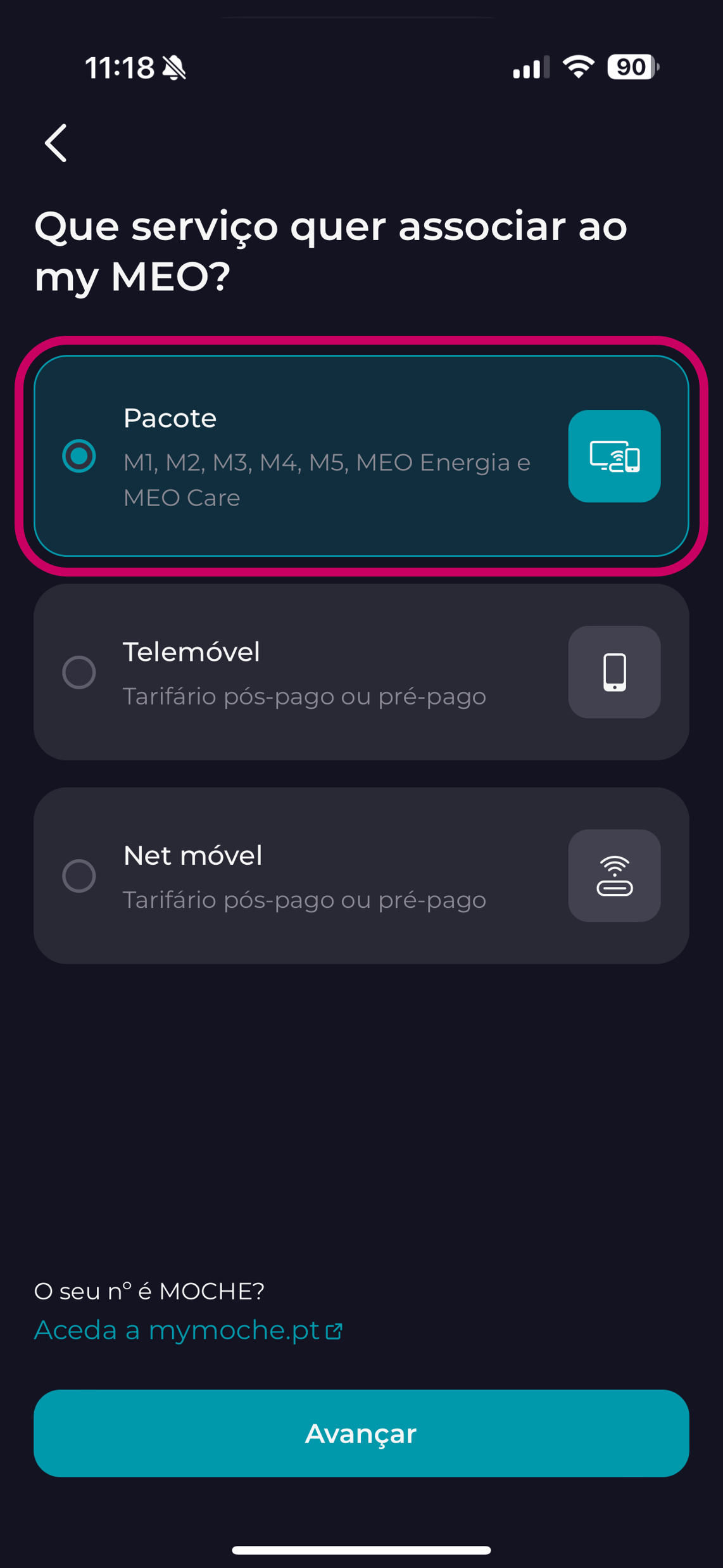
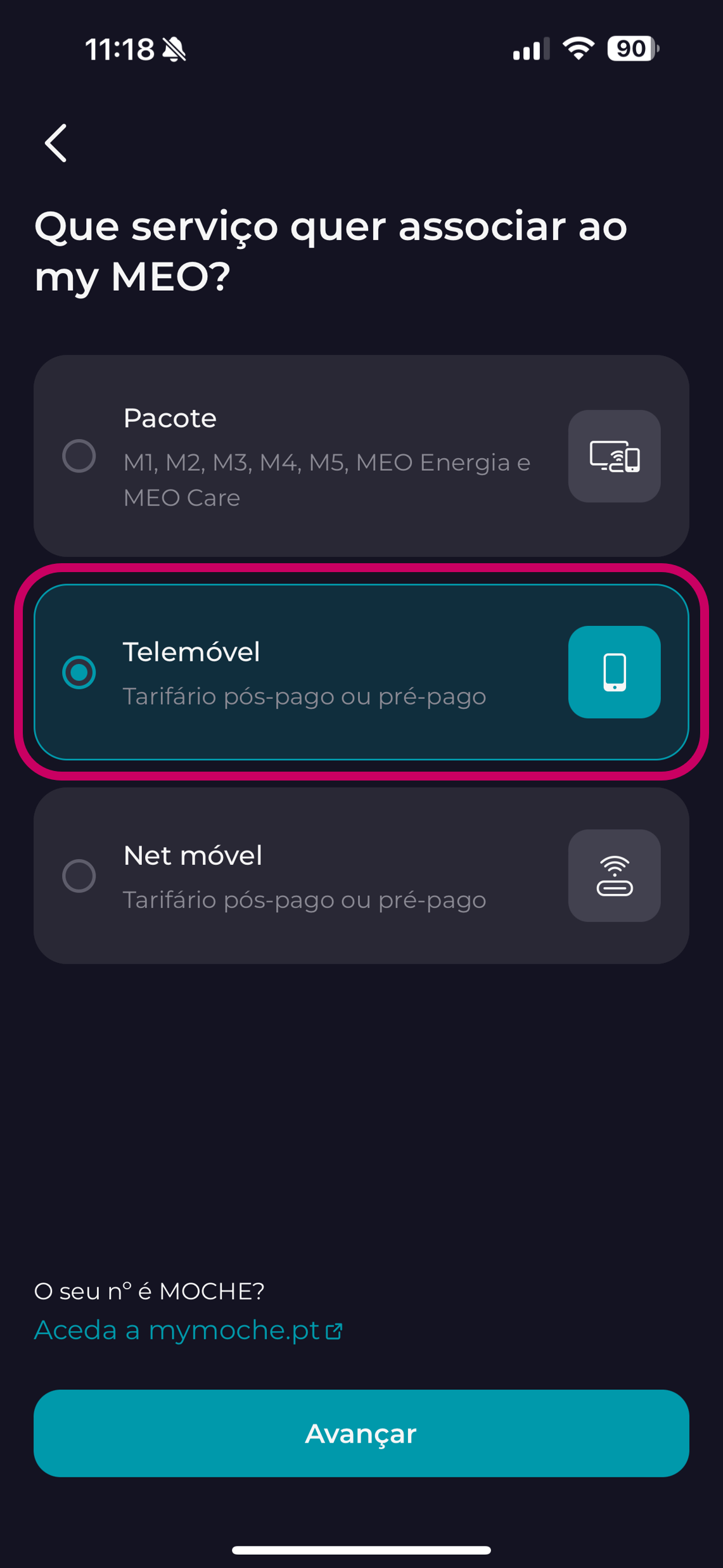
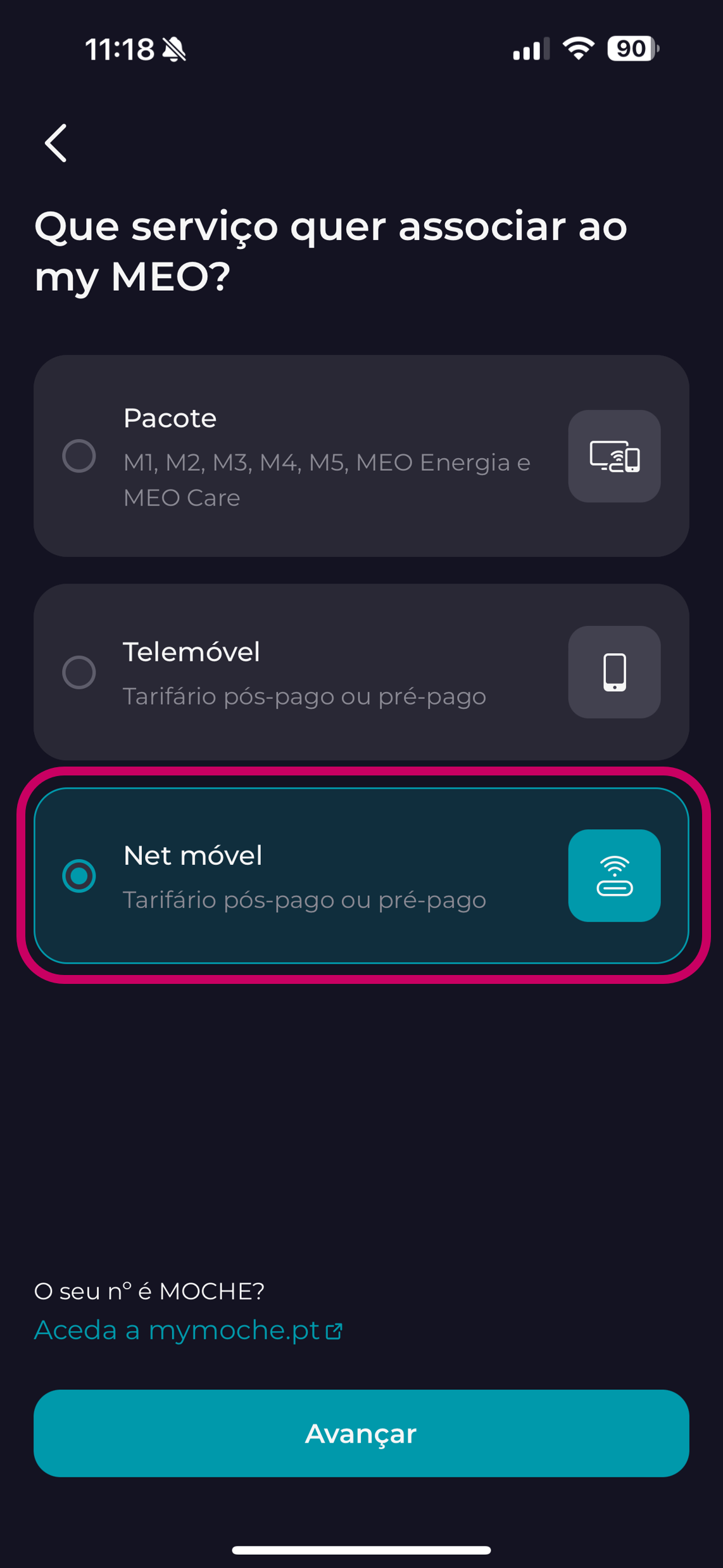
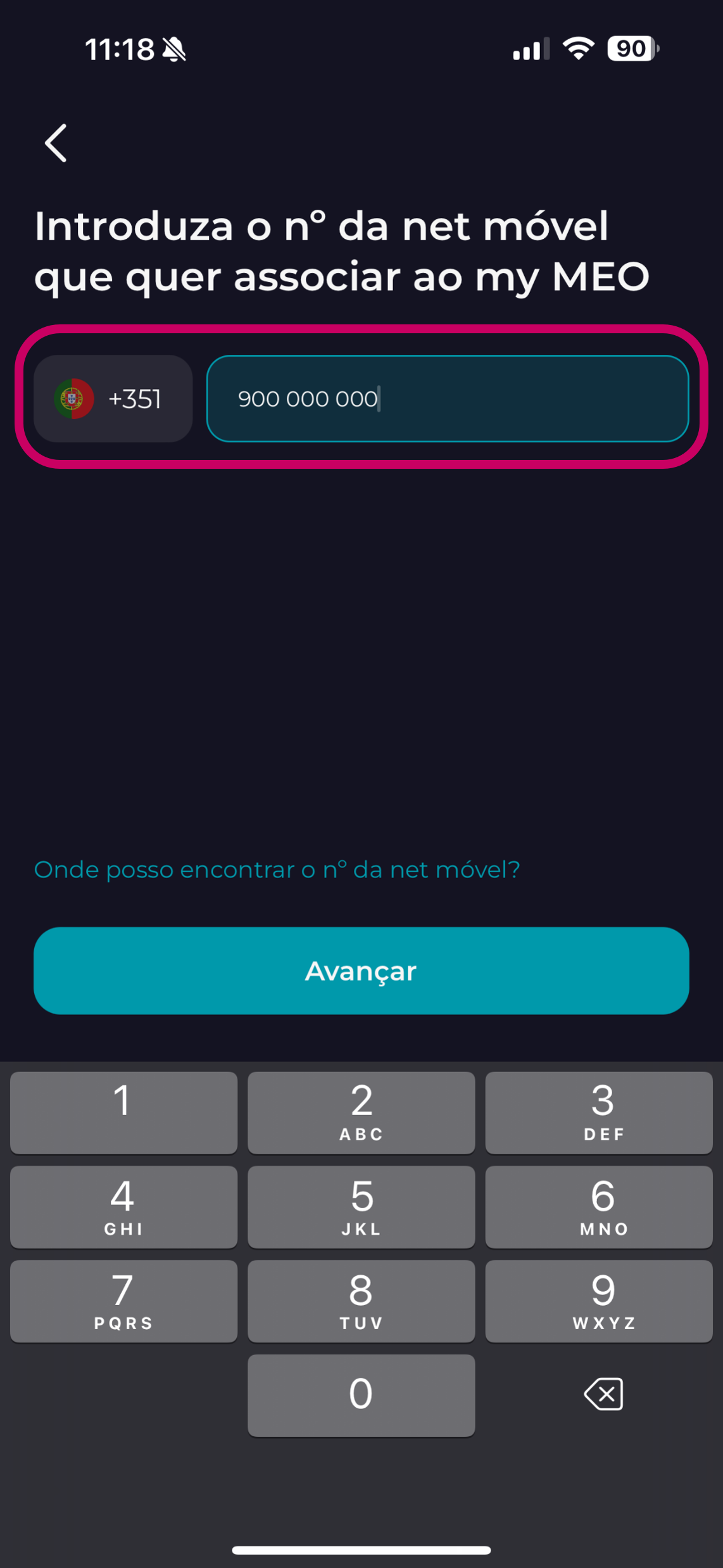
3. Choose the type of service you want to associatebundle | mobile phone | Net mobile)
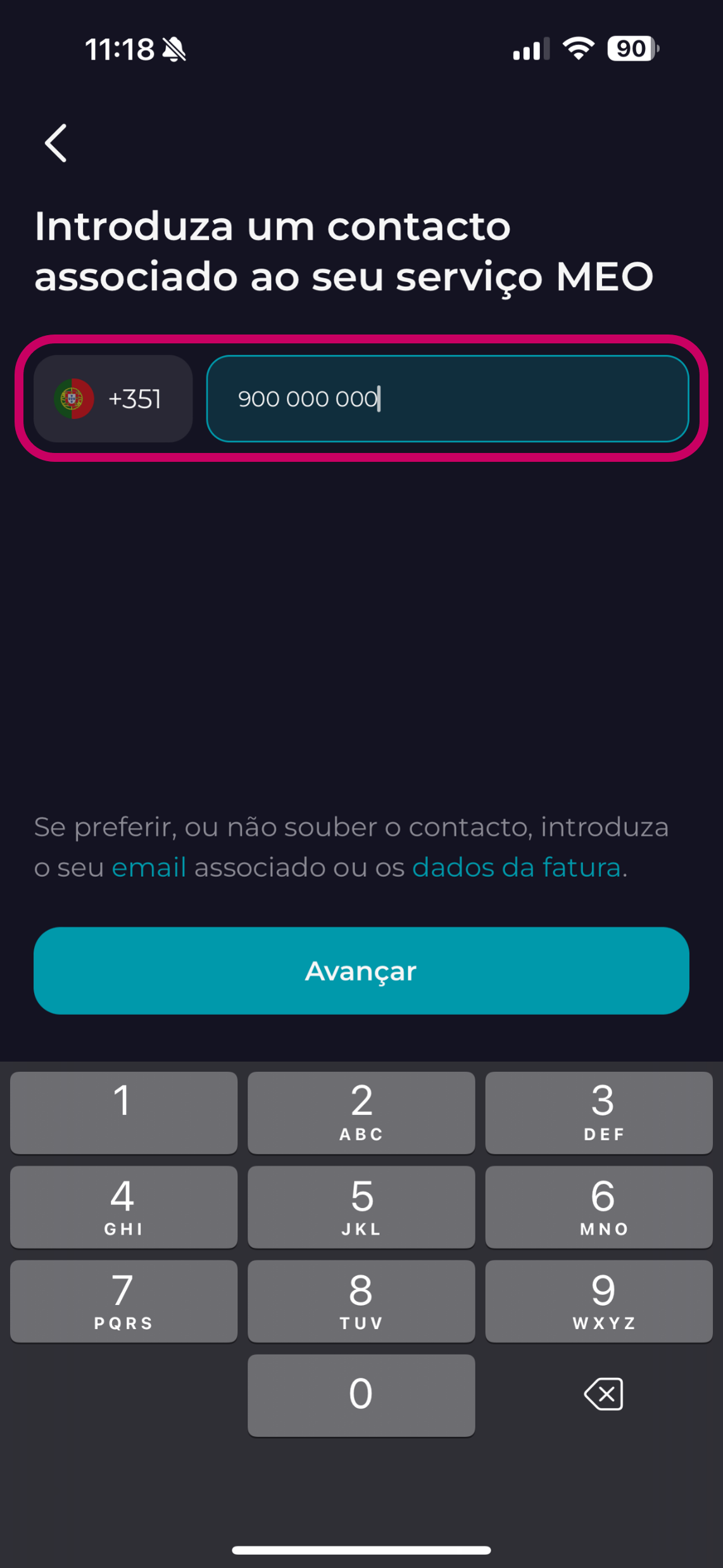
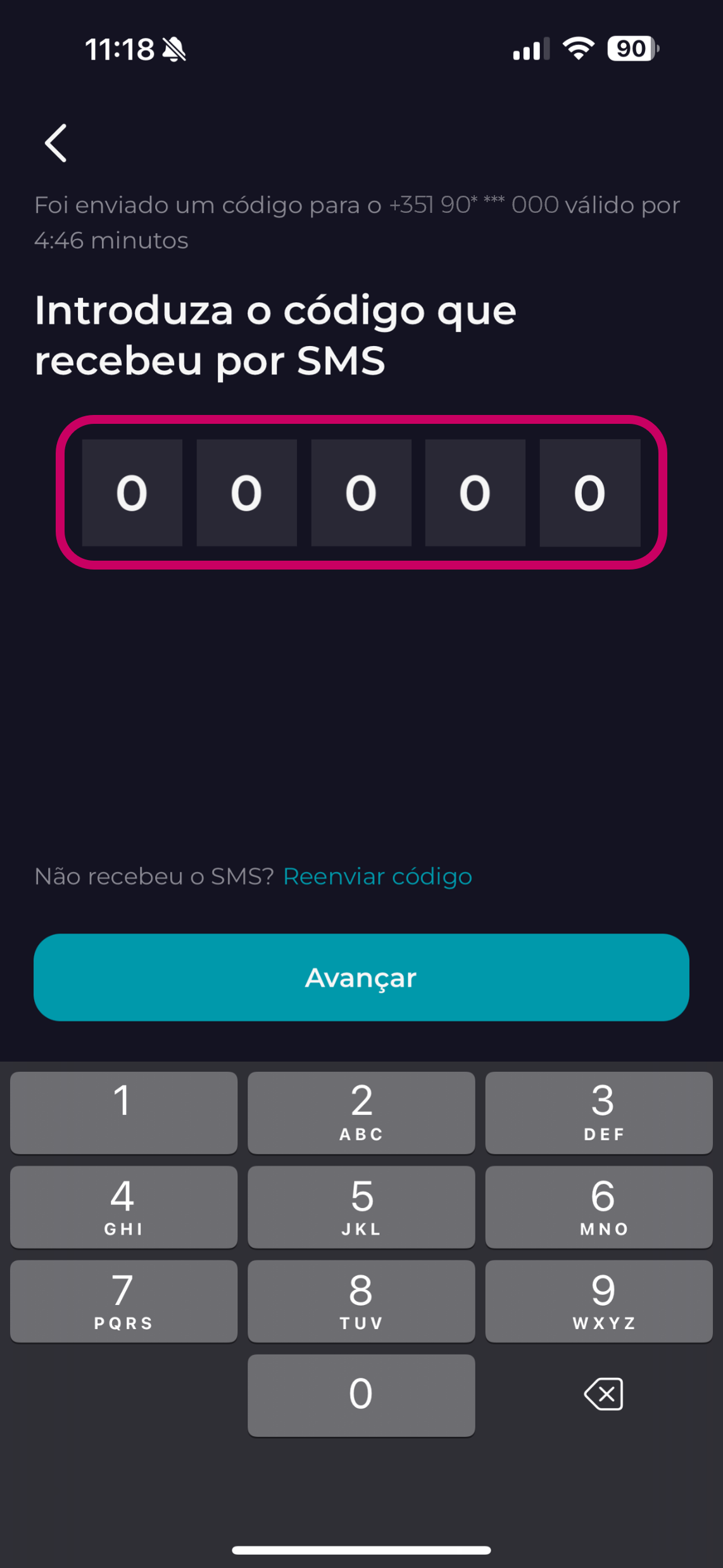
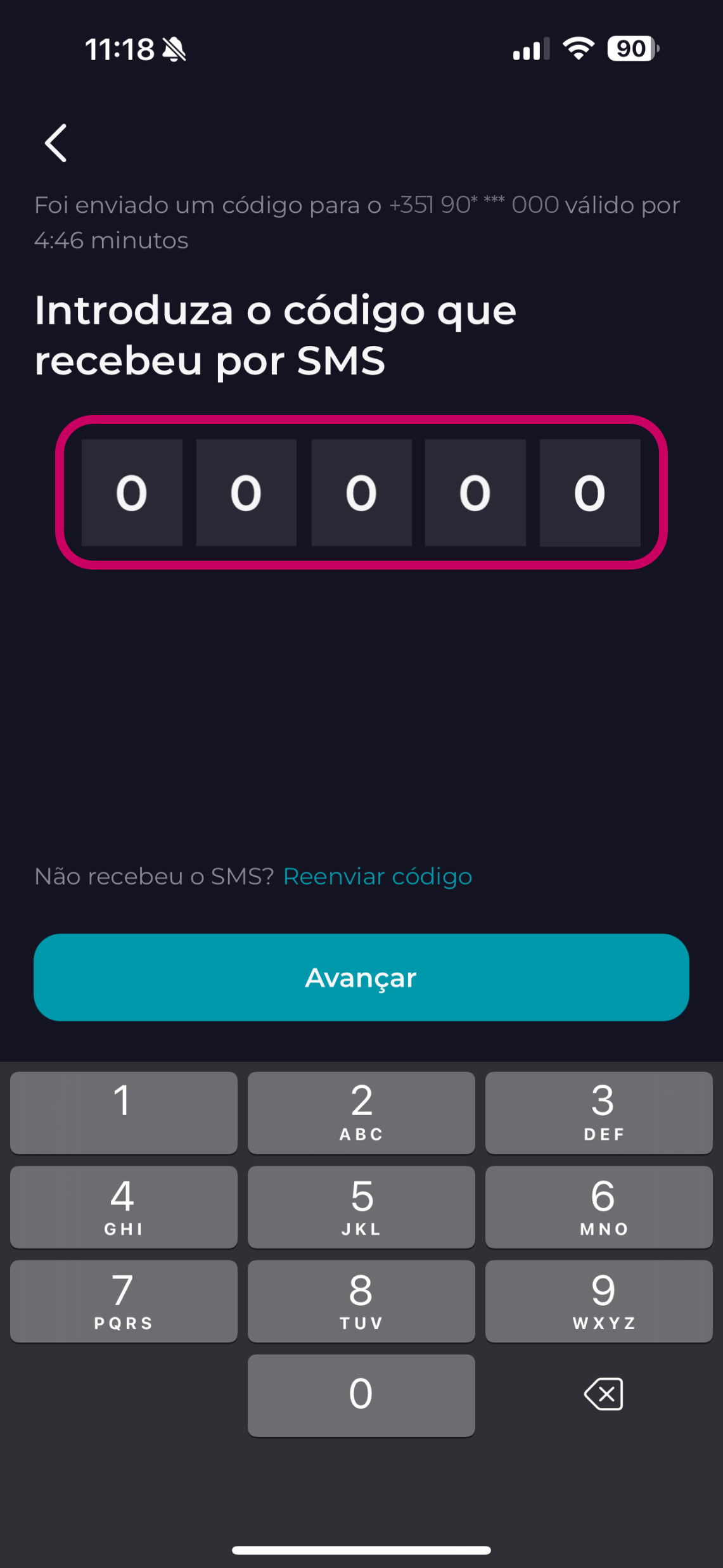
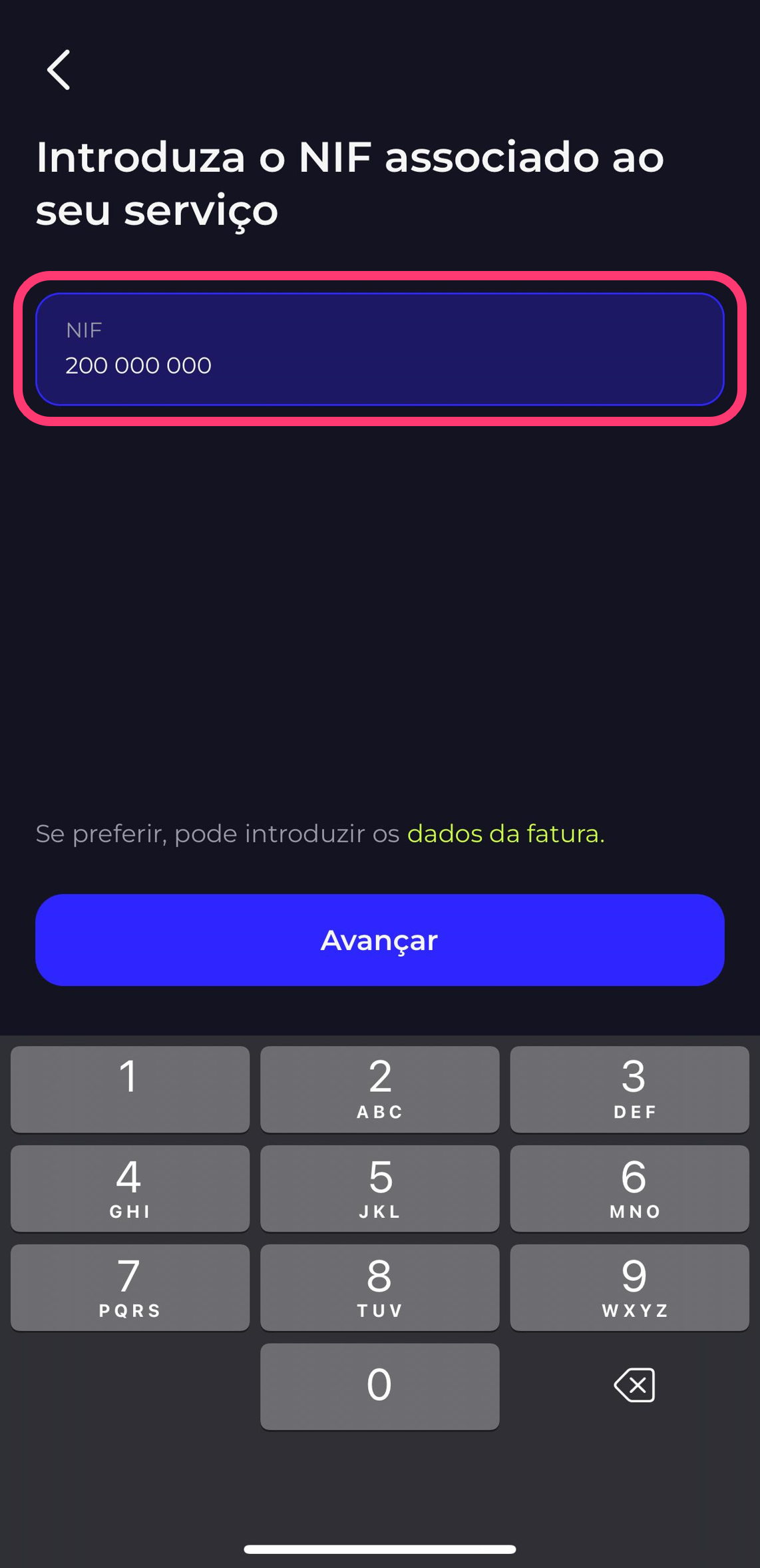
4. If you have an invoiced service, use your NIF and enter the security code that we will send you by text
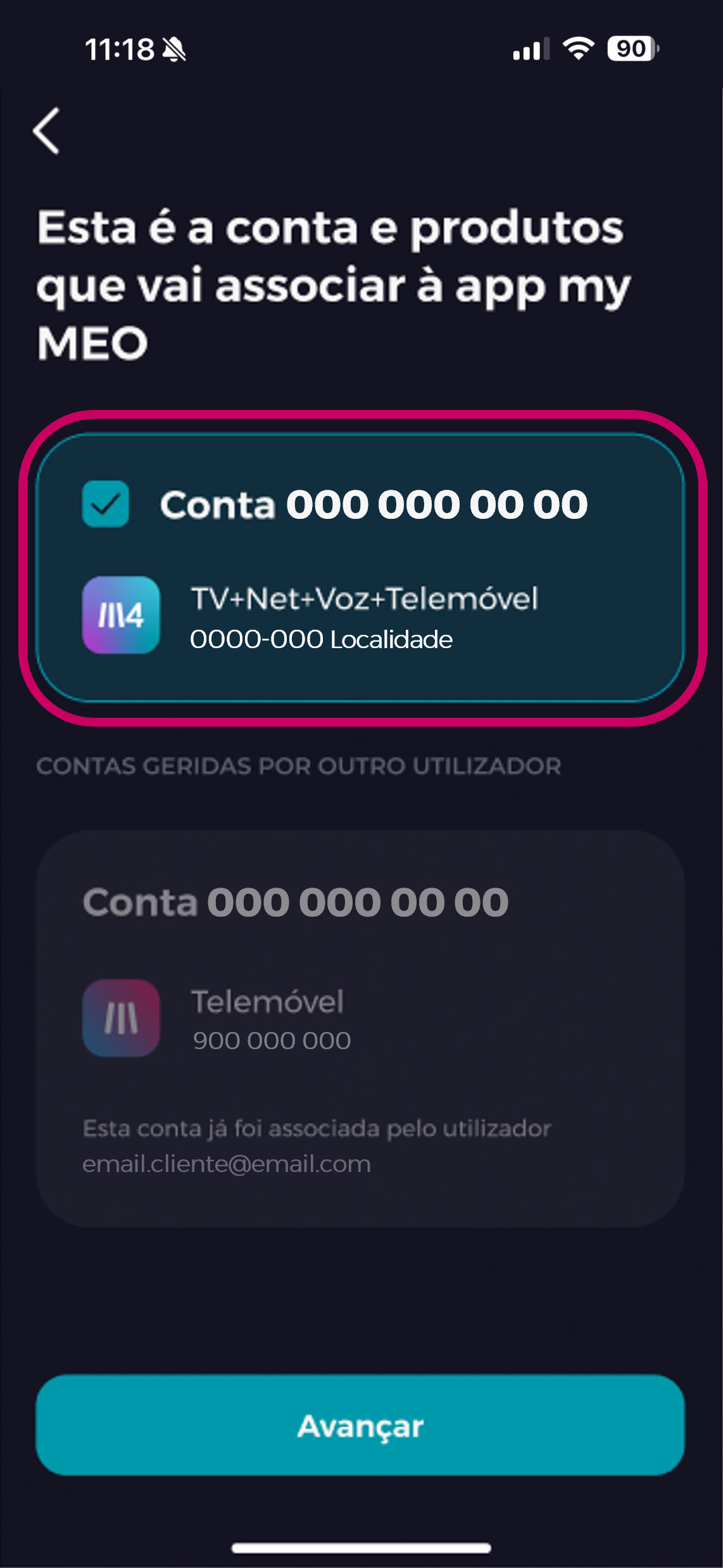
5. Validate the services and accounts you want to associate
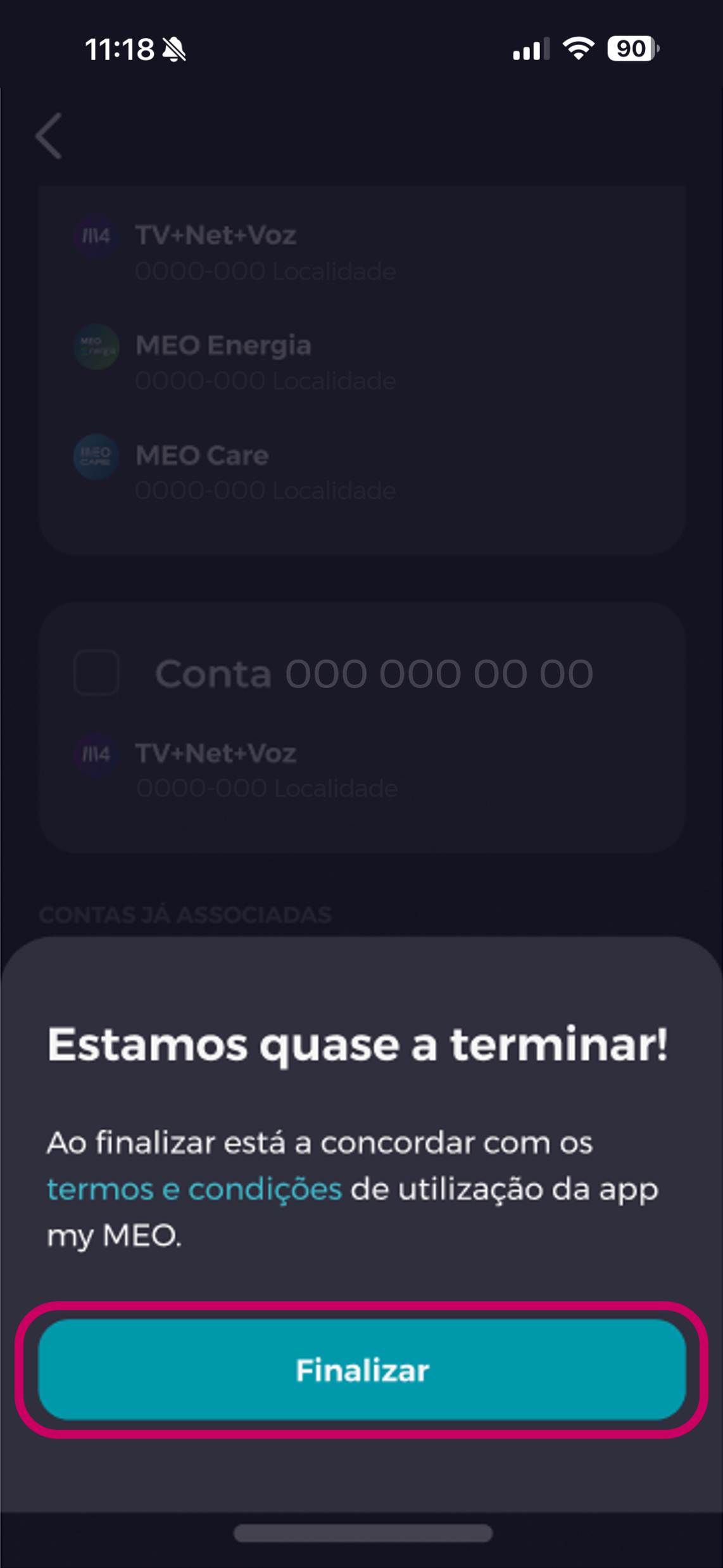
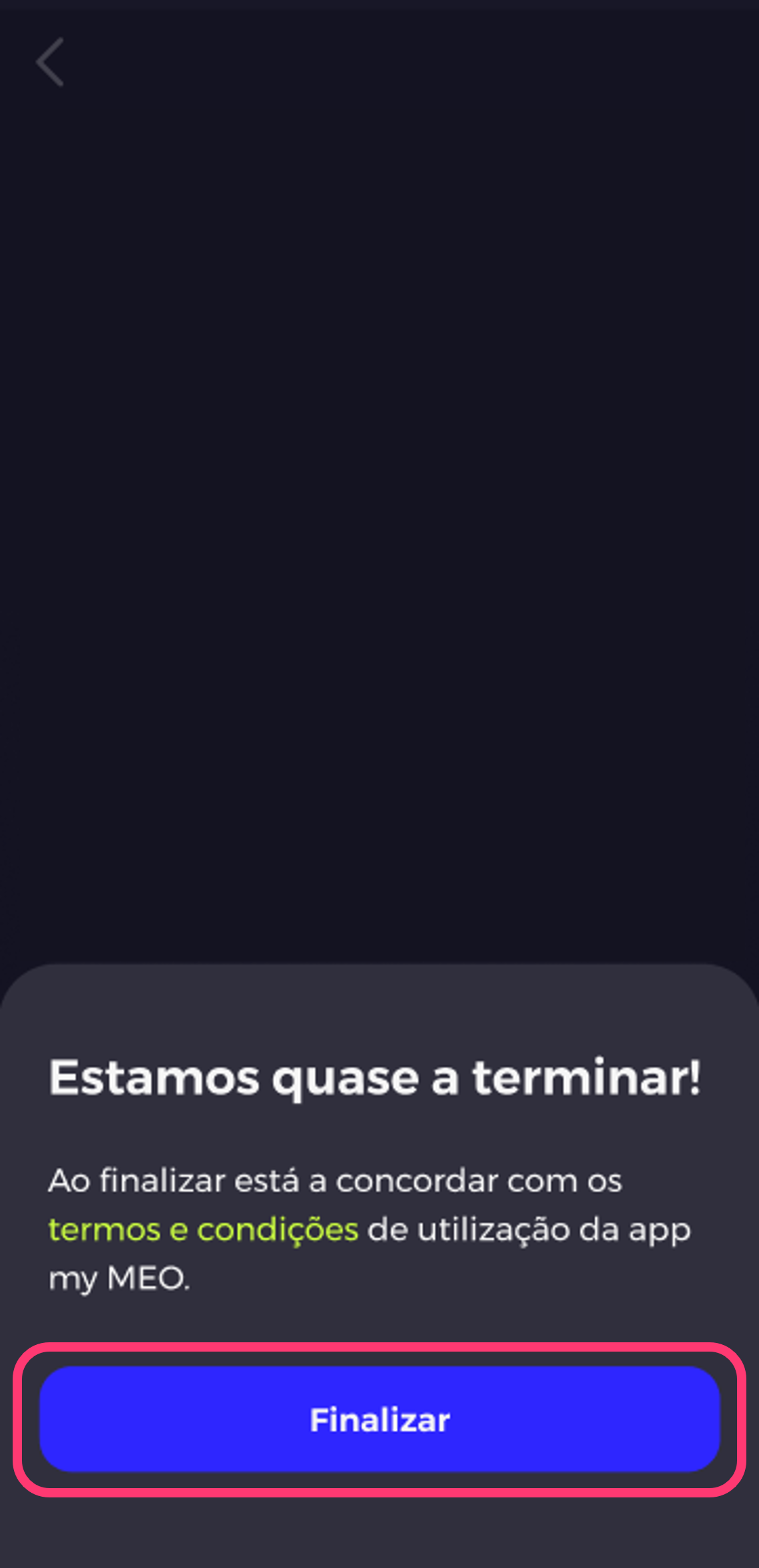
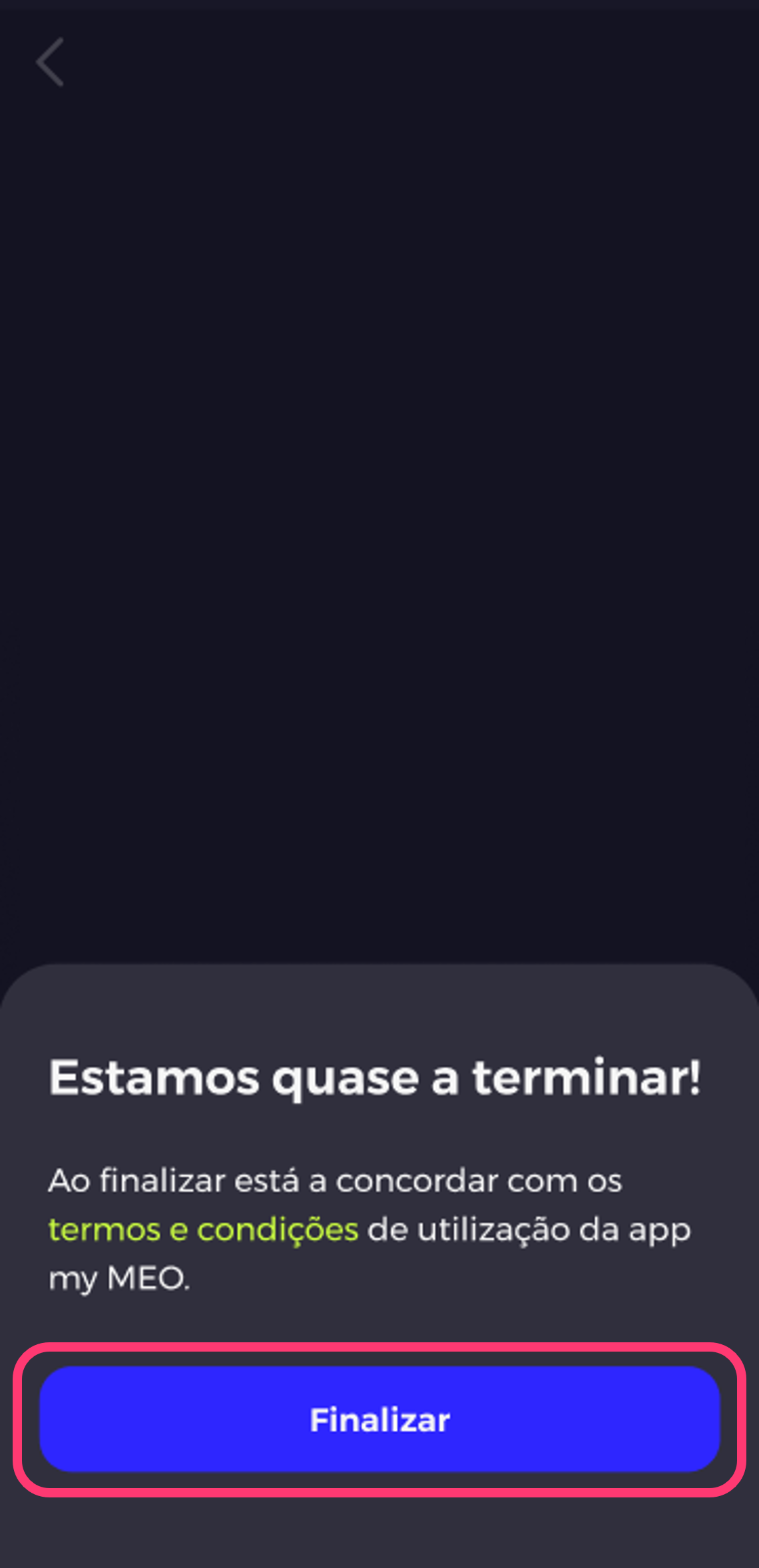
6. Accept the terms and conditions by clicking Finish
For Companies:
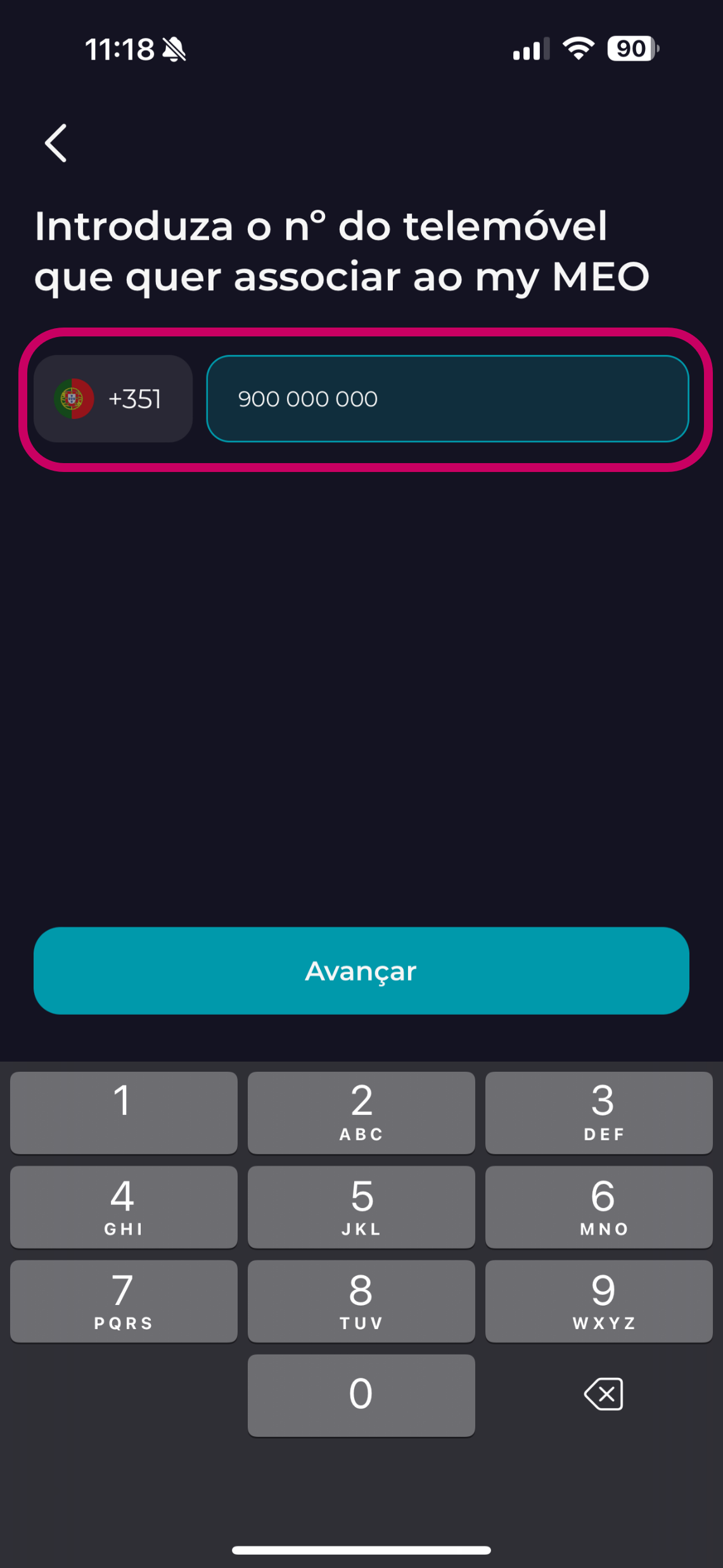
3. Choose whether you want to link all the accounts using the TIN or a mobile phone pay as you go
4. To associate by TIN, enter your company's TIN
5. Type in the number associated with the Account Administrator
6. enter the security code that we will send you by text
7. Validate the services and accounts you want to associate
8. Accept the terms and conditions by clicking Finish
If you prefer to use the my MEO website, these are the steps you should follow:
- Enter my MEO
- Choose between bundle | mobile phone | Net Mobile
- Fill in the information requested, such as your customer and account number, which you'll find on the first page of your invoice.
- Enter the validation code you received
- Accept the terms and conditions by clicking Finish
All the products and services included in your bundle will be linked to your customer portal.
To associate a tax identification number or products in customer Business (customer Enterprisecustomer ), follow these steps:
- Select one of the options Company Registration or Product Registration.
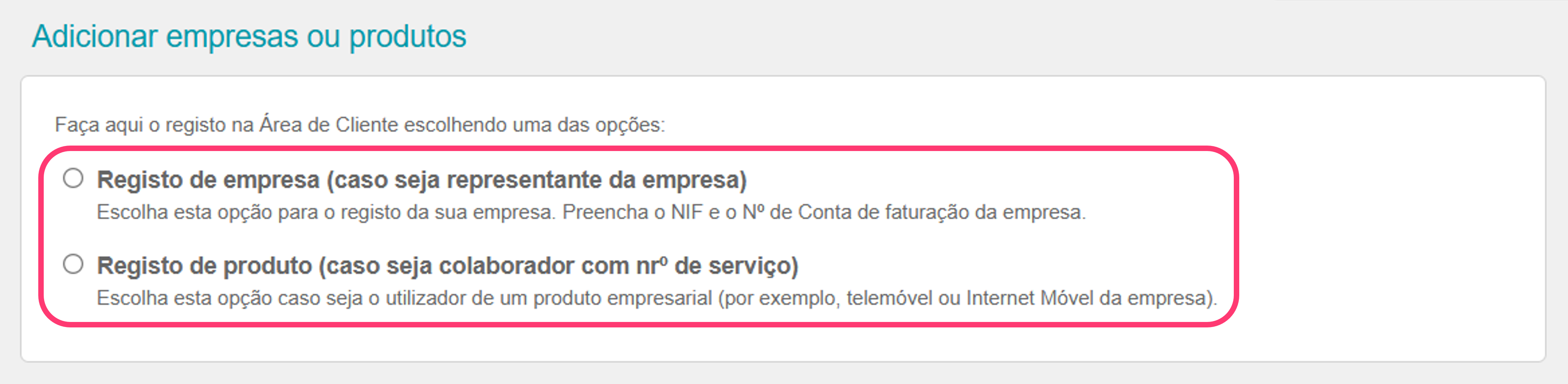
If you selected Company Registration
- Fill in your account number, tax identification number, andmobile phone number.
- Read and accept the terms of use and click Submit.
- If your details are validated, please wait top-up service portfolio to be top-up .
- If your information is not valid, you will need to attach the
completedand signed form, as well as documentation from the company's legal representative.
Registration with document submission does not allow immediate access, as it requires validation of the data submitted.
After registering in the customer Area, you can associate other companies/tax identification numbers or other products, following the same process as for company registration.
If you selected "Product Registration"
- Please enter your company's mobile phone broadband number.
- Accept the terms and conditions by clickingContinue.
- Enter the security code we will send you via SMS.
- Please wait until the number becomes available in the customer area.
When registering the company's product (mobile phone company broadband), you will only have access to view the consumption andPIN PUK of the registered product.
________________________________________________________________________________________________
In detail, these are the screens and the data you will be asked for.
-
When associating a bundle to Personal: